
Here’s the number that stops most people from running a serious model on their own machine: a 70-billion-parameter model, at the precision it was released in, needs about 140 GB of VRAM. That’s not a graphics card — that’s a rack.
And yet people run 70B models on two gaming GPUs, or on a MacBook. The thing that makes it possible is quantization, and it’s one of the highest-leverage ideas in applied AI: a technique that cuts memory by 4x while costing you a fraction of a percent in quality.
This guide covers the actual math, the formats worth knowing, what you really lose, and how to work out what will run on the hardware you already own.
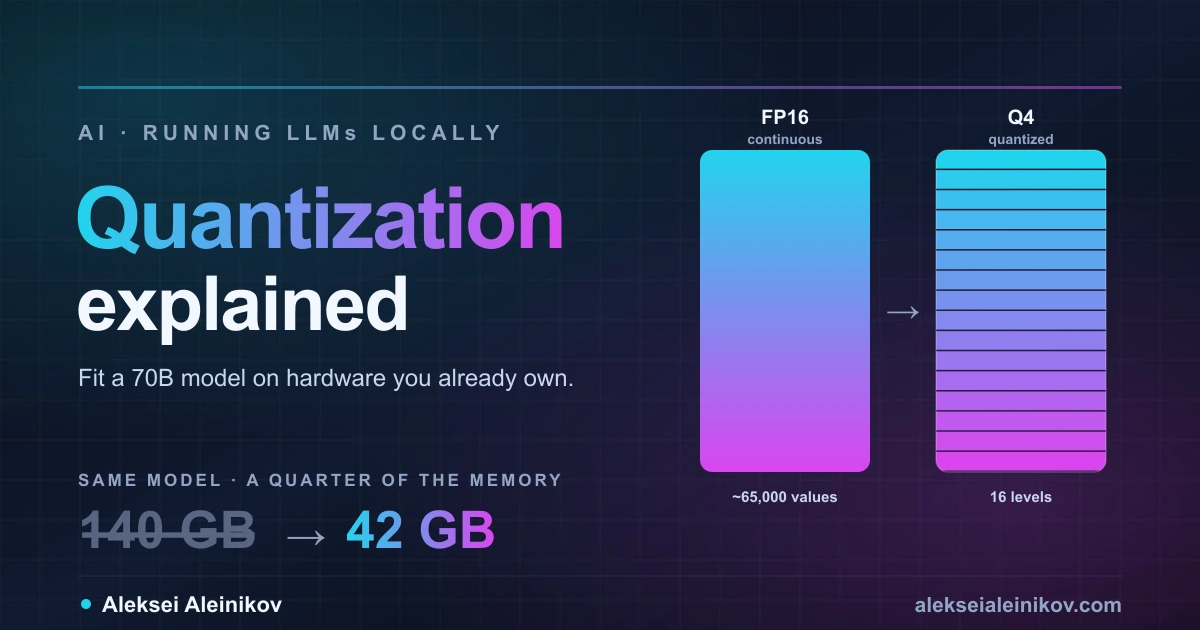
What Quantization Actually Does
A language model is a very large pile of numbers. Each parameter — each weight — is normally stored as a 16-bit floating point value: two bytes, capable of representing a huge range with fine gradations.
Quantization asks a blunt question: do we need all that precision?
Instead of storing each weight as one of ~65,000 possible 16-bit values, you map it onto a much smaller set — 256 levels for 8-bit, 16 levels for 4-bit. You keep a scale factor per group of weights so the values can be reconstructed approximately, and you accept that “approximately” is good enough.
It’s lossy compression, and the closest familiar analogy is JPEG. A JPEG throws away detail your eye doesn’t prioritise and lands at a fraction of the original size. Quantization throws away numerical precision the model doesn’t strongly depend on. In both cases the surprise is the same: you can discard a lot before anyone notices.
The VRAM Math
This is the one piece of arithmetic worth memorising:
memory (bytes) = parameters × bits ÷ 8Run it for a 70B model:
| Precision | Bits per weight | Weights size | Fits on |
|---|---|---|---|
| FP16 (original) | 16 | ~140 GB | Datacentre GPUs |
| Q8_0 | ~8.5 | ~75 GB | 4× 24 GB GPUs |
| Q6_K | ~6.6 | ~58 GB | 3× 24 GB GPUs |
| Q5_K_M | ~5.7 | ~50 GB | 64 GB Apple Silicon |
| Q4_K_M | ~4.8 | ~42 GB | 2× 24 GB GPUs |
| Q3_K_M | ~3.9 | ~34 GB | 48 GB, tight |
| Q2_K | ~3.0 | ~26 GB | 32 GB, poor quality |
That single step from FP16 to Q4_K_M is the whole story: 140 GB becomes 42 GB. A model that required enterprise hardware now runs on two used RTX 3090s, or a Mac Studio.
The same math scales down. An 8B model is ~16 GB at FP16 and ~4.9 GB at Q4_K_M — comfortable on any 8 GB card, which is why small models feel almost free to run locally.
Note the bits-per-weight values aren’t round numbers. Modern quantization is mixed precision: attention layers and other sensitive tensors keep more bits while bulk feed-forward weights are compressed harder. That’s what the
_KinQ4_K_Mmeans — a K-quant, allocating precision where it matters.
The Formats Worth Knowing
Four families dominate, and picking correctly matters more than picking the exact bit count.
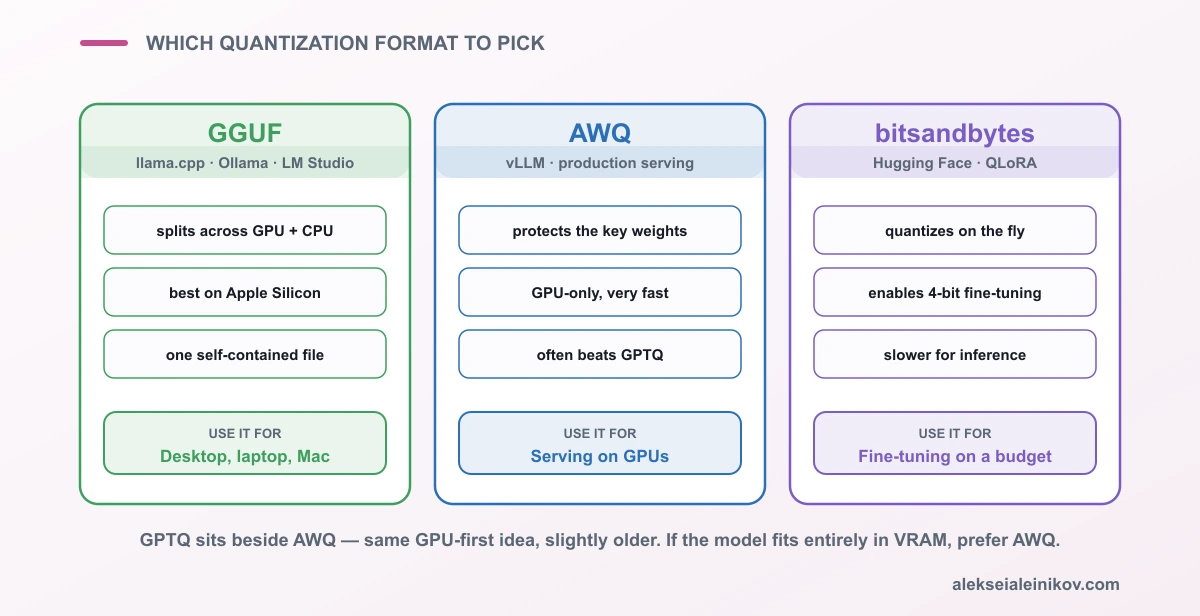
GGUF — the format of llama.cpp, and therefore of Ollama and LM Studio. One self-contained file with weights and metadata. Its superpower is flexibility: it can split a model across GPU and CPU RAM, so a model that doesn’t quite fit in VRAM still runs, just slower. It’s also the best option on Apple Silicon, where unified memory blurs the CPU/GPU line entirely.
GPTQ — a GPU-first method that uses a calibration dataset to decide how to round each weight, minimising error layer by layer. Fast when the model fits entirely in VRAM.
AWQ (Activation-aware Weight Quantization) — same idea, smarter selection: it identifies the small percentage of weights that most influence activations and protects them. Often better quality than GPTQ at the same bit width, and widely used with vLLM in production.
bitsandbytes — the on-the-fly option in the Hugging Face ecosystem (load_in_4bit, NF4). Less optimised for pure inference speed, but it’s what makes QLoRA fine-tuning possible: train adapters on top of a 4-bit base model.
The decision is simpler than the list suggests:
- Running on a desktop, laptop, or Mac → GGUF
- Serving on GPUs in production → AWQ (or GPTQ)
- Fine-tuning on a budget → bitsandbytes / QLoRA
What You Actually Lose
The standard measure is perplexity — roughly, how surprised the model is by real text. Lower is better, and comparing a quantized model’s perplexity to the original tells you what the compression cost.
The shape of that curve is the important part:
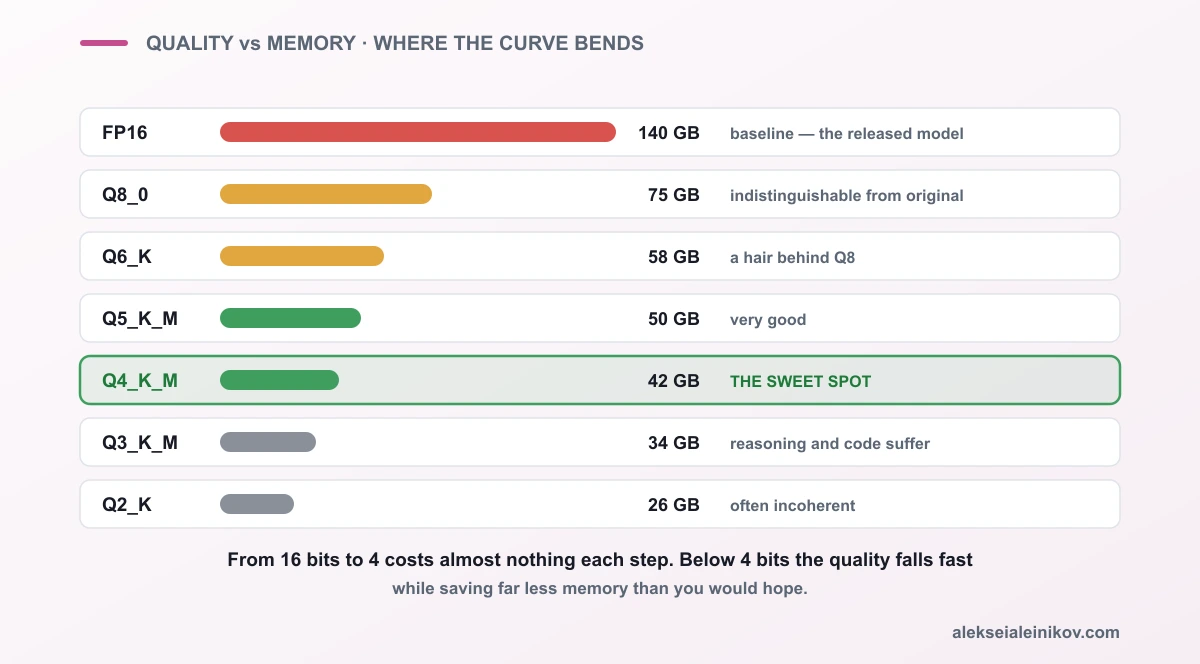
- Q8 — effectively identical to the original. If you can’t measure it, it isn’t there.
- Q6 — a hair behind Q8. Excellent if you have the memory.
- Q5 — very good; a reasonable choice when Q4 feels too aggressive.
- Q4 — small but real degradation. This is the sweet spot and the default recommendation.
- Q3 — noticeably weaker. Reasoning and code start to suffer.
- Q2 — often incoherent on hard tasks. Usually a false economy.
Two things about that list surprise people.
First, the curve isn’t linear. Going 16 → 8 → 4 bits costs almost nothing each step. Going 4 → 3 → 2 costs a great deal, and saves less memory than you’d hope, because mixed precision means Q2_K is really about 3 bits per weight, not 2.
Second, the damage isn’t evenly distributed. Quantization hurts multi-step reasoning, long-context recall, and code generation far more than casual conversation. A heavily quantized model can hold a perfectly pleasant chat and then fail at the actual work. Always test on your task, not on vibes.
The Rule That Matters Most
If you remember one practical heuristic from this article:
At a fixed memory budget, a bigger model quantized harder beats a smaller model quantized lightly.
A 70B at Q4 (~42 GB) generally outperforms a 13B at Q8 (~14 GB) — and even compared at similar footprints, parameter count wins. Scale buys knowledge and reasoning depth that extra numerical precision simply cannot reconstruct.
This holds until quantization gets extreme. Below roughly 3 bits the damage outweighs the benefit of more parameters, and you’re better off dropping to a smaller model at Q4.
So the selection rule is: pick the biggest model that fits at Q4 — not the smallest model that fits at Q8.
The KV Cache Will Ruin Your Day
Here’s the mistake almost everyone makes: they check that a 42 GB model fits in 48 GB of VRAM, load it, send a long prompt, and watch it crash.
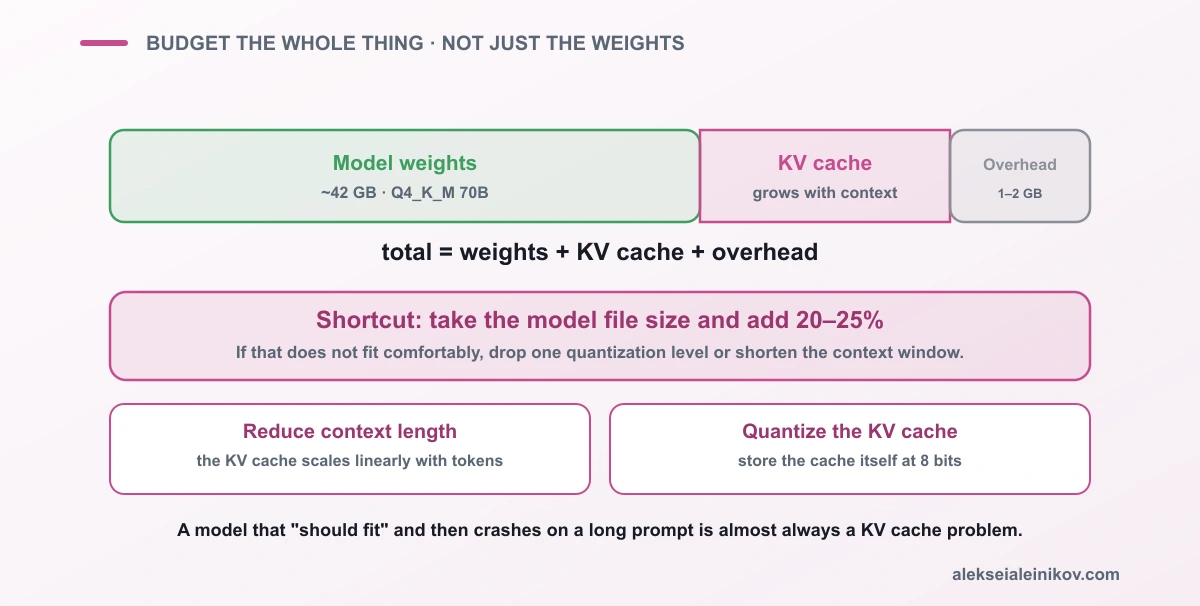
The weights are not the only thing in memory. During generation the model caches keys and values for every token processed so far — the KV cache — and it grows linearly with context length. For a large model at a long context this is not a rounding error; it can be many gigabytes.
Budget like this:
total = weights + KV cache + ~1–2 GB overheadA practical shortcut: take the model file size and add 20–25%. If that doesn’t fit comfortably, step down a quantization level or shorten your context window.
Two knobs help when memory is tight: reduce the context length you configure, or enable KV cache quantization (storing the cache itself at 8 bits), which most modern runtimes now support.
What Will Run on Your Hardware
Rough guidance, assuming Q4_K_M and a moderate context:
| Your hardware | Realistic model size |
|---|---|
| 8 GB VRAM | 7–8B comfortably |
| 12 GB VRAM | 8B easily, 13B tight |
| 16 GB VRAM | 13–14B comfortably |
| 24 GB VRAM (3090/4090) | 32B comfortably |
| 2× 24 GB | 70B |
| Mac, 32 GB unified | up to ~32B |
| Mac, 64 GB unified | 70B |
| Mac, 128 GB unified | 70B at Q6, or larger models |
Apple Silicon punches above its weight here. Unified memory means the GPU can address all system RAM, so a 64 GB Mac runs models that would need two discrete GPUs — slower than an equivalent NVIDIA setup, but with far less hassle.
Actually Running It
The fastest path from zero to a running model is Ollama, which handles the download and quantization selection for you:
# pulls a Q4_K_M build by defaultollama run llama3.3:70b
# or be explicit about the quantizationollama run llama3.3:70b-instruct-q5_K_M
If you want to pick the file yourself — from a Hugging Face repo of GGUF builds, for example — the naming decodes cleanly:
Model-70B-Instruct-Q4_K_M.gguf │ │ │ │ │ └── M = medium (S = small, L = large) │ └──── K-quant: mixed precision └─────── ~4 bits per weightFor server-side inference where the model fits entirely on GPUs, vLLM with an AWQ build will substantially outperform GGUF on throughput — that’s the setup worth reaching for once you’re serving more than yourself.
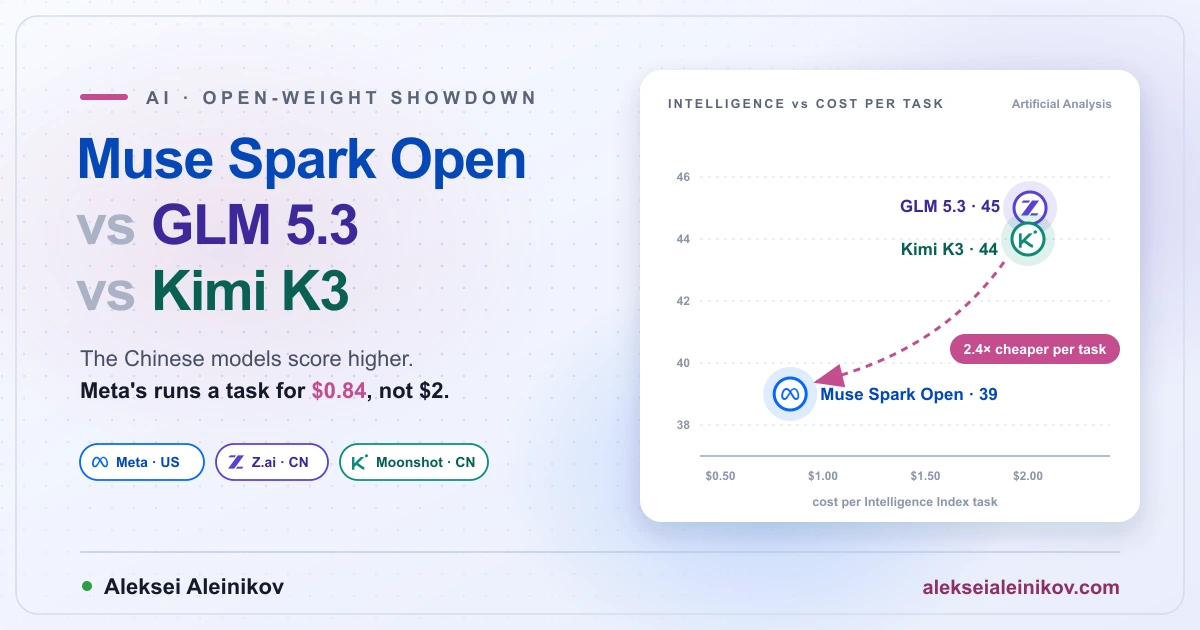
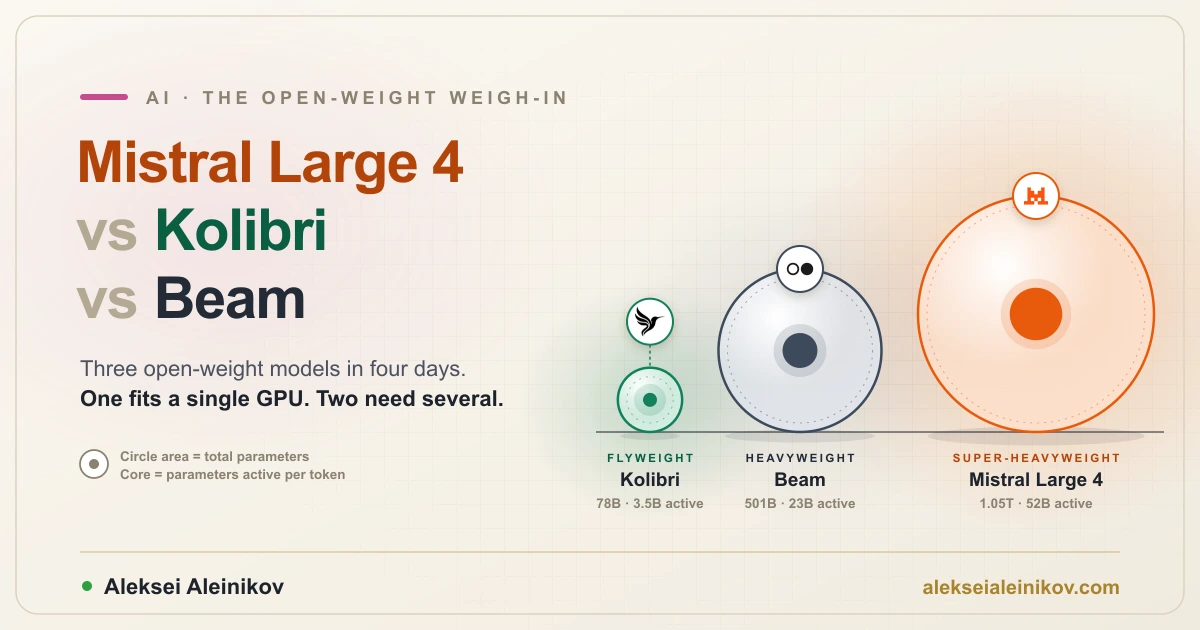
Mixture-of-experts models don’t escape this arithmetic. Only a few experts run per token, but all of them have to sit in memory — which is why a trillion-parameter model like Mistral Large 4 needs a full GPU node while Kolibri fits on one card. It is also why a 3-bit build of Meta’s 816-billion-parameter model still takes 344 GB: see what Muse Spark Open needs to self-host.
When Not to Quantize
Quantization is close to free, but not entirely:
- Evaluation and benchmarking. If you’re measuring model quality, measure the real model. Quantization adds a variable you don’t want in the experiment.
- Generating training data. Errors compound downstream; use full precision at the source.
- When it already fits. If you have the memory, FP16 or Q8 removes an entire class of “is it the quantization?” debugging.
- Very small models. A 1–3B model loses proportionally more from aggressive quantization — there’s less redundancy to spare.
The Bottom Line
Quantization is what turned local LLMs from a datacentre hobby into something that runs on hardware you already own. The mechanics are simple enough to hold in your head: parameters × bits ÷ 8, plus a KV cache that grows with your context.
Default to Q4_K_M. Choose GGUF on a desktop or Mac, AWQ with vLLM when you’re serving on GPUs. Pick the biggest model that fits at Q4 rather than the smallest that fits at Q8. And budget 20–25% above the file size so a long prompt doesn’t take you down.
That’s most of what separates “I’d need a server for that” from a 70B model answering on your desk.
If you want to see how far this idea goes in the other direction, I’ve written about running AI models directly in the browser with WebGPU — the same compression thinking, applied to an even tighter memory budget. And once you have a local model doing real work, MCP servers are how you give it tools safely.
From the community
Discussion on Mastodon & Bluesky
Replies to this article from the open web, pulled in live. No ads, no tracking scripts.
Reply there — it shows up here automatically.